
Performance Hack #003 : Drawings : 3d PDF from Drawings
Overall Concept: 3D PDF
In this tutorial we are going to talk about how SolidWorks can export a model as a 3D PDF document. Normal pdf contains a static image like a JPG. A PDF can include 3D data if the correct option is checked in the Save As dialog. The resultant file is a 3D PDF which contains an active view which can be zoomed, rotated and panned in Adobe® Reader 7 or higher. Let’s learn more about this easy method for communication and viewing purposes.
If you currently have a lower version of Adobe Reader, during testing, it seems that you will still have may of the features listed below. The only difference noted to date: is that the labels from a higher version Adobe will not show in a lower version adobe.
Create 3D PDF
Please open part or assembly file for which you want to create the 3D PDF.
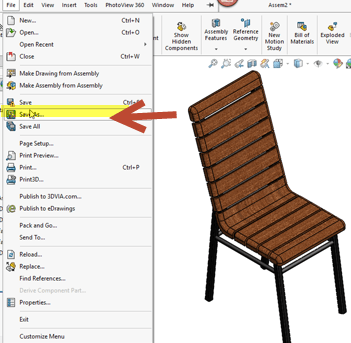
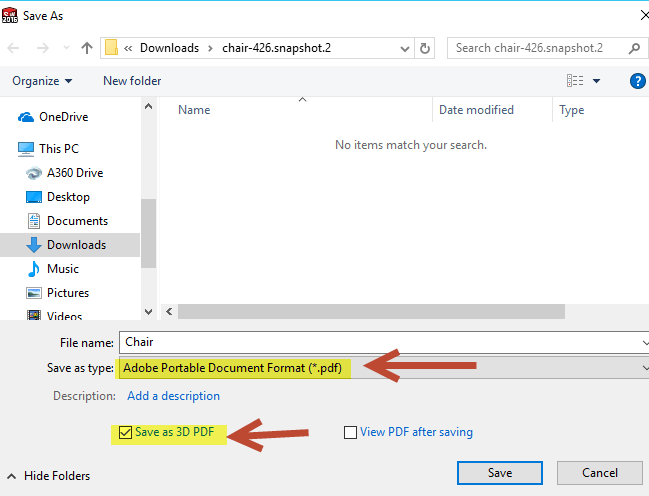
1. File > Save As > Save as type and change the default Part extension into Adobe Portable Format (PDF). Select Save as 3D PDF, verify the file name, and click Save.
2. This PDF document will contain a 3D model view which can be view in Adobe® Reader 7 or higher.
Open the 3D PDF file.
1. RMB or right click anywhere in the graphics area to see what other functionality are there.
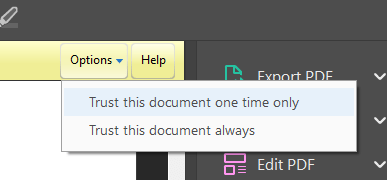
(enable Content If Required)

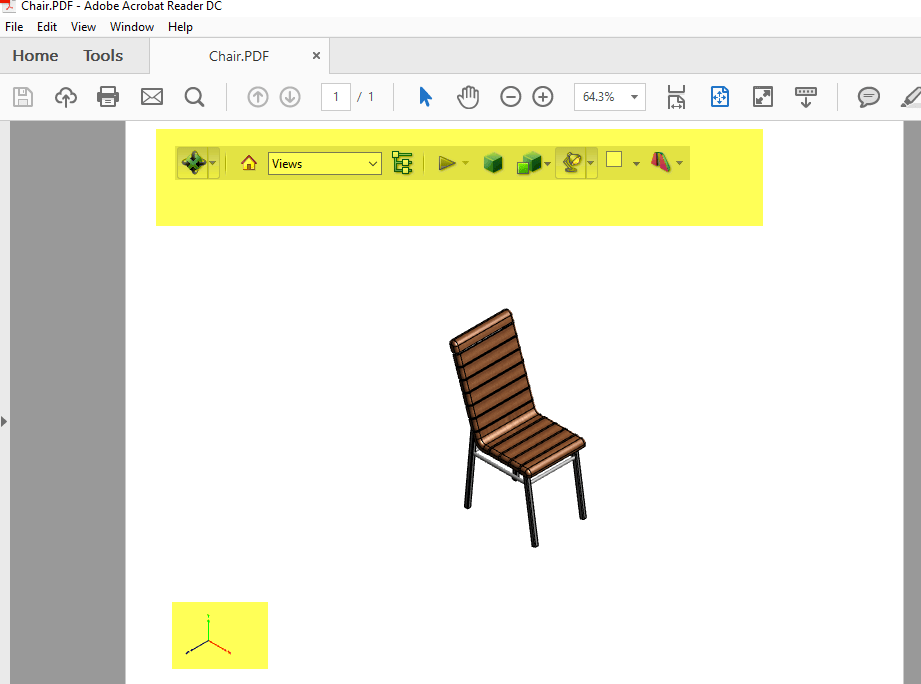
2. Rotate- Select the Menu bar. You have multiple options to rotate, pan, zoom this just like you would use it in E-drawings.
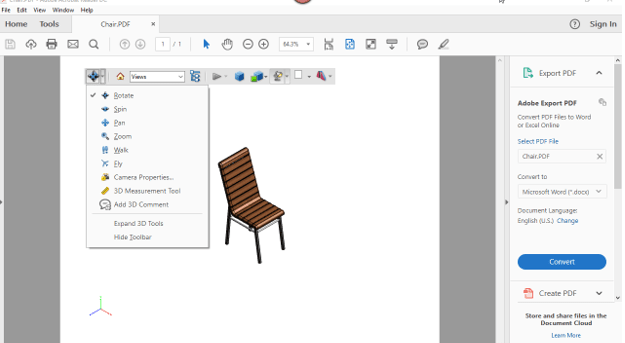
3. Zoom use scroll mouse. Hold left mouse button click hold down and drag so you can rotate your model around. In this tool bar you can select Pan and fly options too.
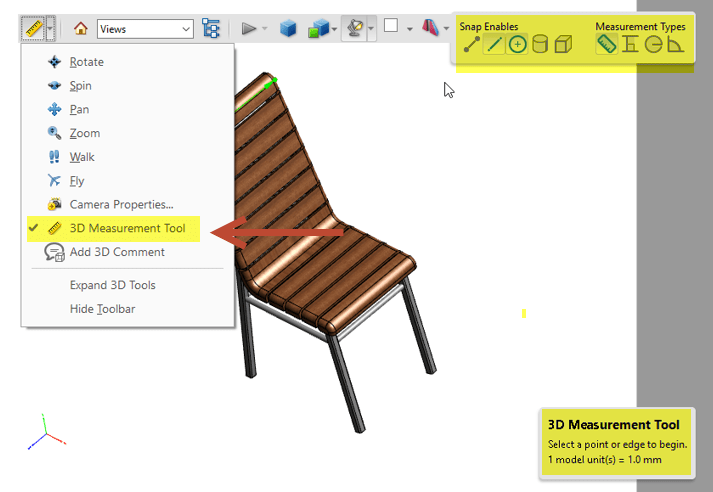
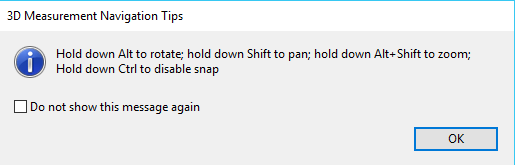
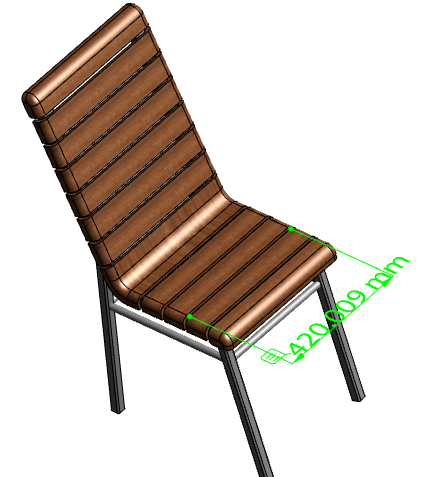
4. 3d Measurement: Select 3d measurement tool. You can measure dimensions. you can hold down the Alt key to rotate hold down the shift key to pan hold down alt + shift to zoom and you can disable the snaps which are shown in the little toolbar up.
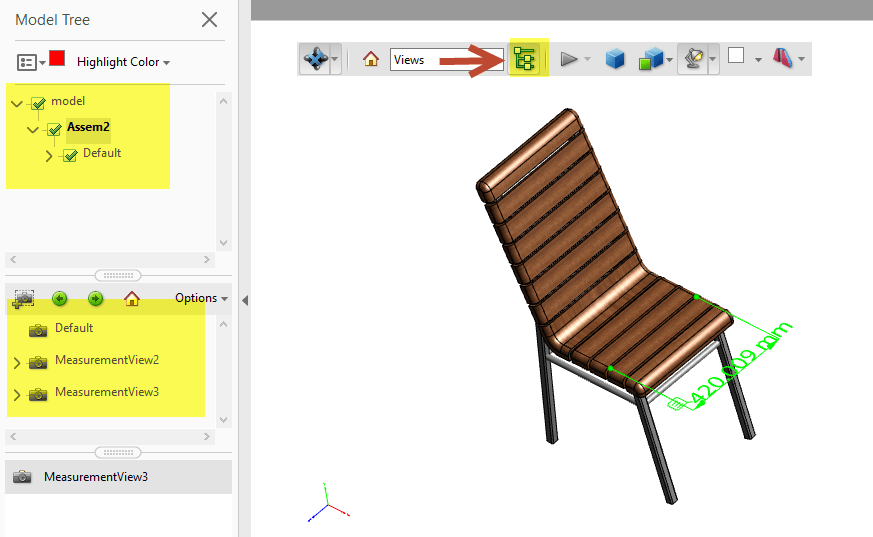
5. Feature/Model Tree- Model tree or your feature tree on click
6. Comments section and it will show your comments
7. You can review your model with different render Mode.
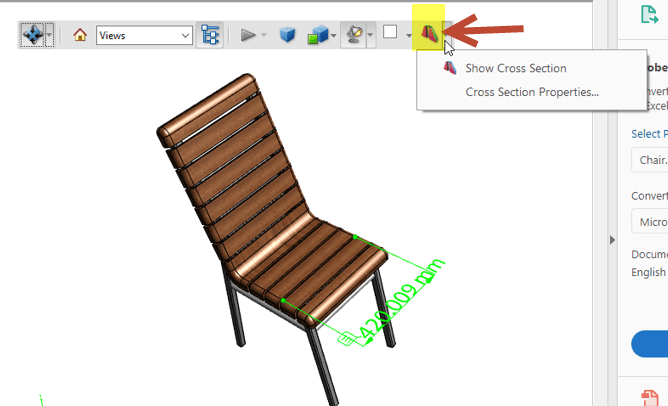
8. Section Views- Yes Right in pdf you can toggle different sections views.
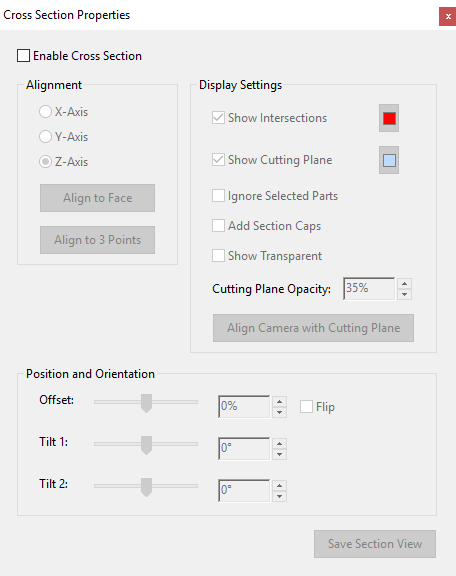
9. You can also change the properties of the section.




Hello, I enjoy reading through your post. I wanted to write a little comment to
support you.
My brother suggested I would possibly like this blog.
He used to be totally right. This submit truly made my day.
You can not believe simply how much time I had spent for this info!
Thank you!
Hello, I enjoy reading through your article.
I wanted to write a little comment to support you.
This is really interesting, You’re a very skilled blogger.
I have joined your rss feed and look forward to seeking more of your
wonderful post. Also, I have shared your site in my
social networks!
Hi, I do think this is a great website. I stumbledupon it
😉 I’m going to revisit once again since I book-marked
it. Money and freedom is the best way to change, may you be rich
and continue to guide others.
I do accept as true with all of the ideas you’ve presented for your
post. They are very convincing and will definitely work.
Still, the posts are too brief for newbies.
May just you please prolong them a bit from next time?
Thanks for the post.
Valuable info. Fortunate me I found your website by accident, and I’m stunned
why this coincidence did not happened earlier!
I bookmarked it.
Fine way of describing, and pleasant article to take data
on the topic of my presentation focus, which i am going to convey in school.
magnificent post, very informative. I ponder why the opposite experts of this sector don’t notice this.
You must continue your writing. I am sure, you have a great readers’ base already!
Having read this I believed it was extremely informative.
I appreciate you spending some time and energy to put this short
article together. I once again find myself spending a significant amount of time both reading and commenting.
But so what, it was still worth it!
Good post. I learn something new and challenging on websites
I stumbleupon on a daily basis. It’s always useful to read through content from other
writers and use something from other websites.